 IdealPoint Of Sale
Till setup
IdealPoint Of Sale
Till setup
How to pair the IdealPOS Till
Pairing makes this PC one of the site's POS numbers. The till finds the site's IdealPOS service on the local network by itself; you only type a 6-digit code from the Back Office. From then on it signs in by itself every time it starts.
You need:
- a Windows 10 or 11 PC (64-bit) with the Microsoft Edge WebView2 Runtime: Windows 11 has it, and so do most Windows 10 PCs; if not, install it from Microsoft;
- the IdealPOS Till installed on this PC;
- a Back Office sign-in for the site with access to POS Terminals;
- the site's IdealPOS service, up to date, running on a PC on the same network.
-
1Install the Till
On the Downloads page, choose Install on the IdealPOS Till card and run the
IdealPOS.Till-version-dev-Setup.exeit downloads. It installs for the current Windows user, so no administrator is needed, and it keeps itself up to date.If Windows shows “Windows protected your PC”, choose More info → Run anyway.
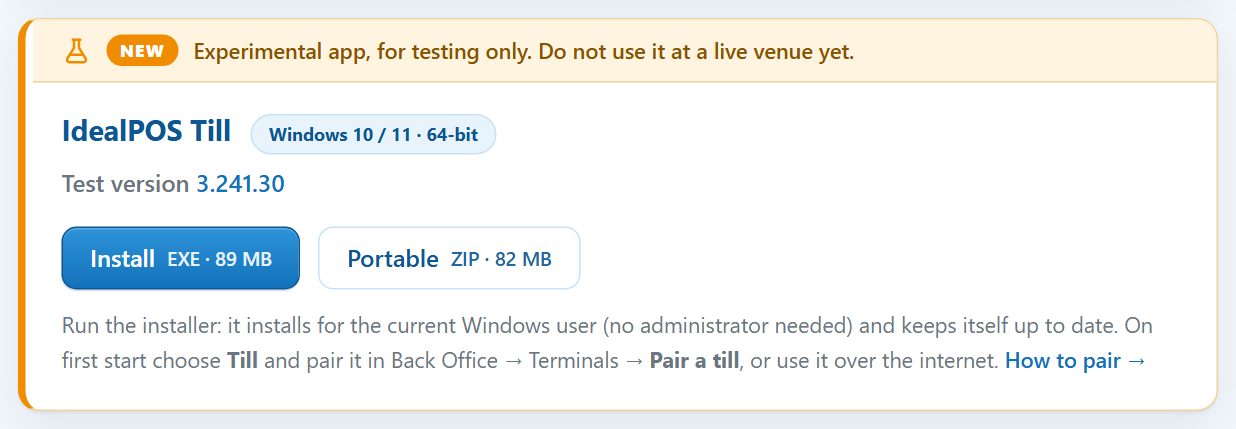
The IdealPOS Till card on the Downloads page. -
2Choose Till on the first start
The first start asks How should this PC start? Choose Till.
Use over the internet is the normal web app instead: you sign in with your IdealPOS account and pick a store. The PC remembers the choice.

The start chooser. -
3Make a pairing code in the Back Office
On any PC or phone, open the site's Back Office and go to POS Terminals (in the Support section). Click the POS number this PC will be, one that no desktop till is logged in to, and choose Pair a till.
A 6-digit code appears. It works once and only for 10 minutes; making a new code replaces the old one. Under it, the Back Office also shows the service PC's address, in case the till does not find the service by itself.
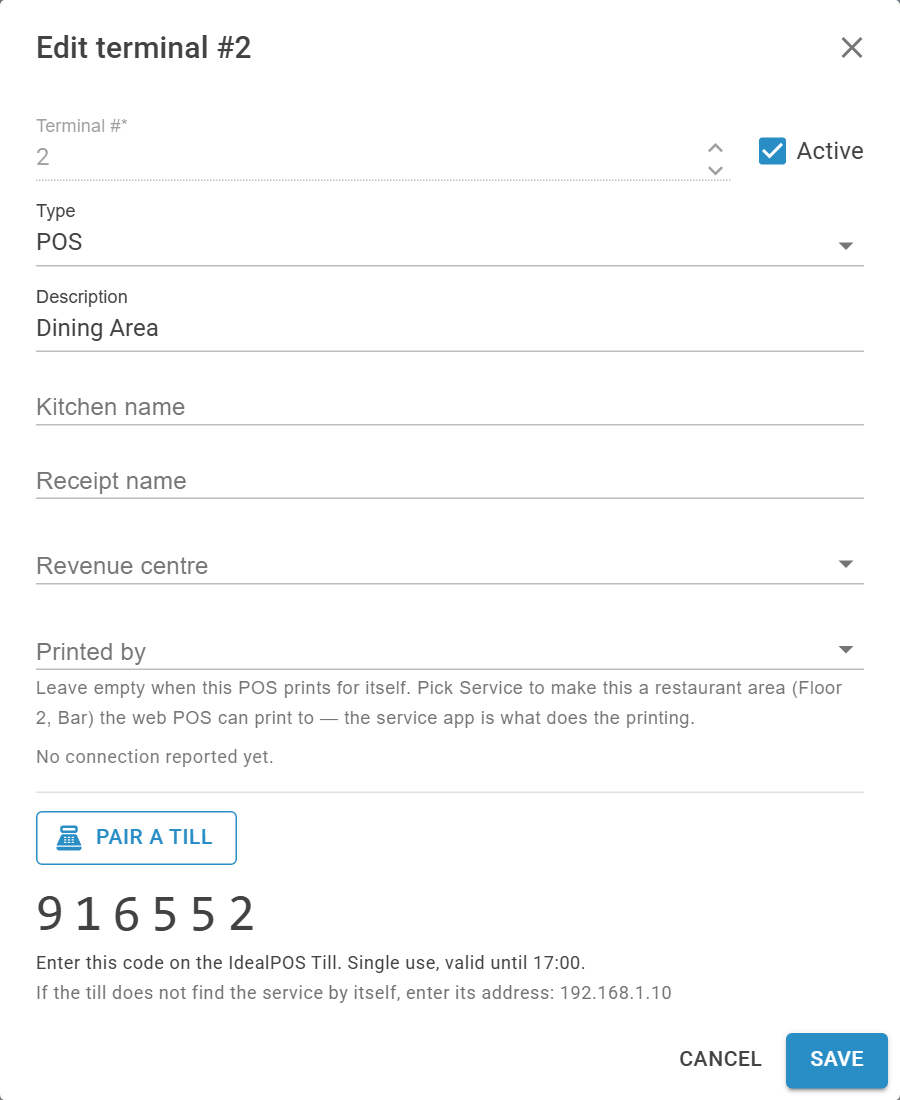
Edit terminal → Pair a till: the code, its expiry time and the service address. -
4Enter the code on the till
Back on the till, the Pair this till screen looks for the site's IdealPOS service by itself, on this PC and on the local network, and shows the site it found. Type the Pairing code and press Pair.
If it finds more than one site, choose yours first.
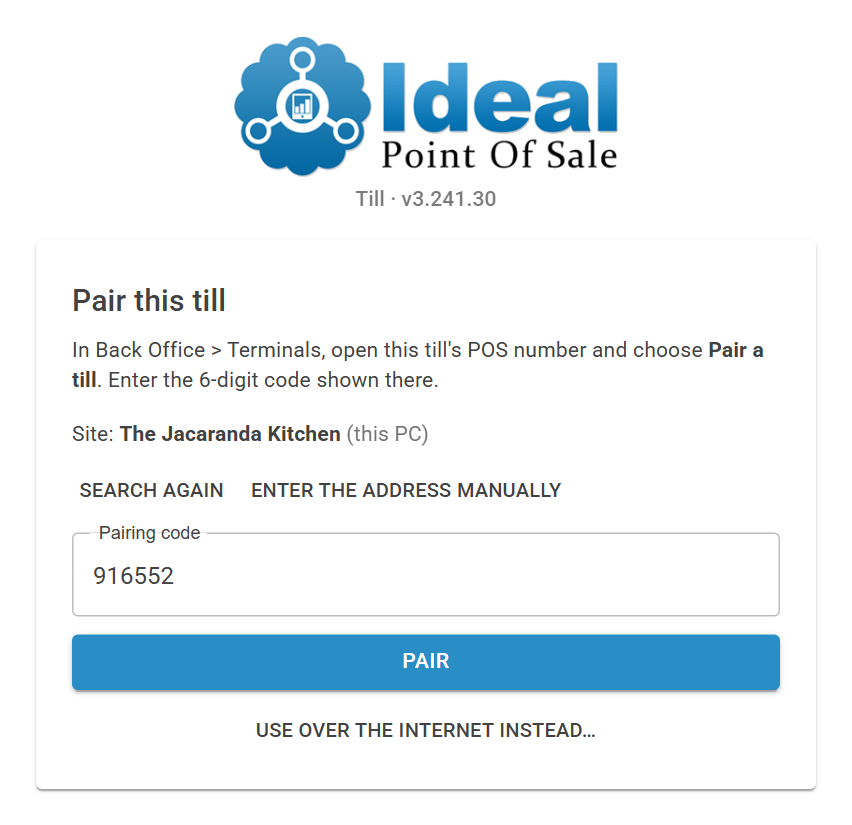
The till found the site by itself (here the service runs on the same PC); only the code is typed. -
5If the till does not find the service
It then says No IdealPOS service found on this network. Type the address the Back Office showed under the code (for example
192.168.1.10) into Site service address, then the code, and press Pair. Enter the address manually does the same when the till found a different site.Usually the till is on another network, or the service PC blocks it: both PCs must be on the same network, and Windows Firewall on the service PC must allow TCP port 3928. Search again looks once more.
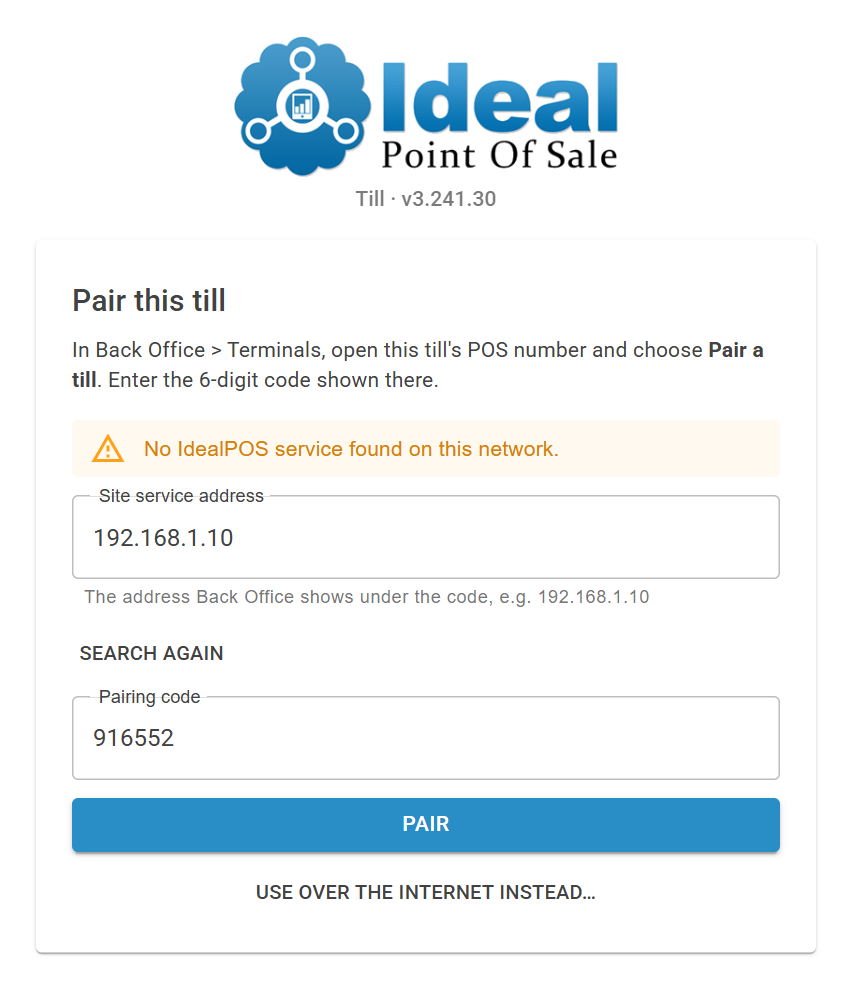
No service found: the address from the Back Office, typed in. -
6Done: staff sign in with their PIN
The till signs in and opens the restaurant board. Staff press Log in, or tap a table, and enter their PIN.
From now on the till signs in by itself at every start, finds the service again if the service PC's address changes, and updates itself to the version of its site service.
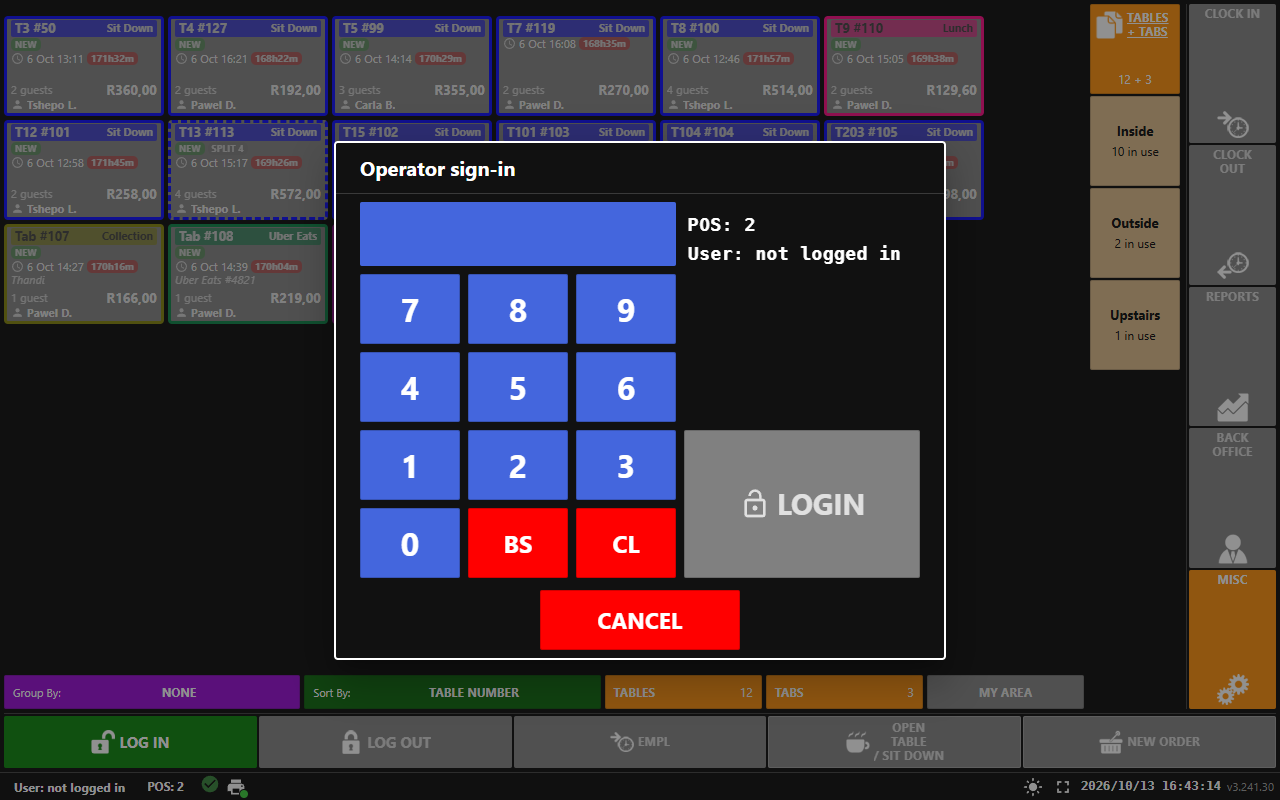
The paired till (POS 2): operator sign-in over the restaurant board.
If something goes wrong
- “A suitable version of Microsoft Edge WebView2 Runtime was not detected.” This PC lacks the WebView2 Runtime the till draws its screens with (some Windows 10 PCs). Download it from Microsoft and run it, as administrator if you can, so it covers every Windows user. Then close the till and start it again.
- “Invalid or expired pairing code.” The code was mistyped, already used, or is older than 10 minutes. Make a new one (step 3).
- “… is in use by a desktop till right now.” Choose a POS number that no desktop till is logged in to, or make a new code once it is logged out.
- “… is a printing area …” Pair the till with a POS register of its own, not with a printing area.
- “Too many attempts. Try again later.” Make a new code in the Back Office, then try again.
- Moving or stopping a till. In POS Terminals, a paired POS number says “Paired with an IdealPOS Till on …” and has an Unpair button, which stops that till at once. Pairing the number with another till replaces the old one. A till that its service turns down offers Pair again… on its own screen.
- The till's log is
%LOCALAPPDATA%\IdealPOS\Till\till.logon the till PC.